


COAX FOR MECHANICS

Keep the workshop moving.
Keep customers in the loop.

Quote requests, booking confirmations, payment links and Google reviews. Give your team one place to handle the conversation around every job.

Works alongside MechanicDesk. Built for the people answering your customers.

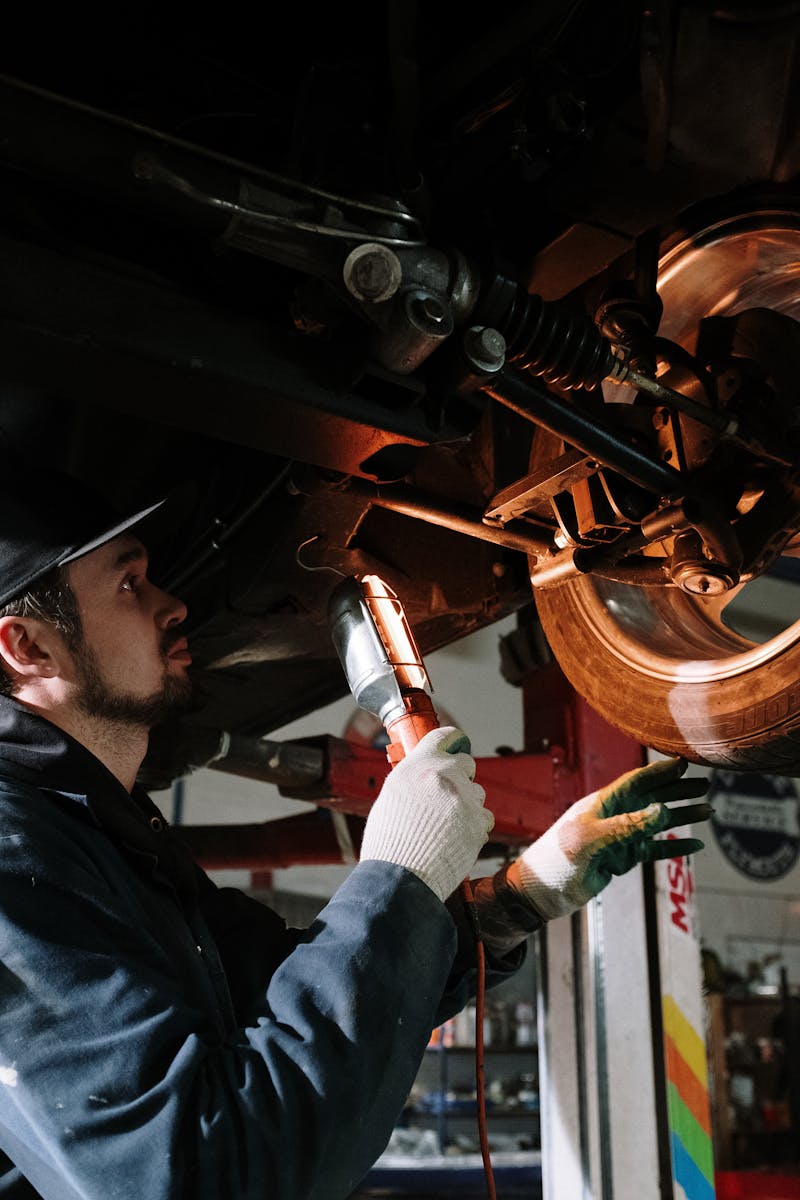
Mechanic inspecting an engine bay
Technician using a diagnostic tool
Vehicle on a workshop hoist

IN THE WORKSHOP · CAIRNS CUSTOMS & CAR SOUND

Hear it from Kristen.

From missed pieces of conversation to a team that can pick up where she left off.

“I’ve saved myself about an hour and a half a day.”

Kristen Ziebell
Co-owner & accounts manager
Cairns Customs & Car Sound

Kristen says having the customer’s conversation in one place helps her team step in when she’s unavailable. She also shares how they use estimate links, MechanicDesk bookings and automated Google review requests.

Watch the customer story on YouTube

GOOGLE REVIEWS ON AUTOPILOT

Finish the job.
Remember the review.

The car is back with its owner. The next customer is already at the counter. Let a configured review request take care of the follow-up.

Connect your Google Business Profile, choose your message and timing, and set the workshop activity that should trigger the ask. With MechanicDesk, Coax can use your job report to start the workflow.

See how Google review requests work
  1. 01

    Use the job report

    Your MechanicDesk report supplies the job and customer details for the configured workflow.

  2. 02

    Send the request

    Coax applies your conditions and timing, then sends the customer your Google review link by SMS.

  3. 03

    Keep the conversation open

    The customer can leave a review or reply to your message if they need a hand.

QUOTE REQUESTS

Get the details.
Then give them a price.

A vague “how much?” needs a conversation. Collect the vehicle details and the work required, ask a follow-up question, then send an estimate or quote link they can review.

  • Capture make, model, registration and the customer’s request
  • Keep questions, photos and the estimate together
  • Record the customer’s reply before your team starts the work
Start with a website enquiry

BOOKINGS & CONFIRMATIONS

A clear time.
A simple way to reply.

Collect the booking details in the conversation and submit a request to MechanicDesk from Coax. Once your workshop confirms the time, send the customer their drop-off details.

  • Use the customer’s contact and vehicle details in the request
  • Send confirmations, reminders and vehicle-ready messages
  • Let customers reply if their plans change

Your workshop confirms availability. A booking request does not reserve a guaranteed time slot.

TWO-WAY MESSAGING

Don’t just send updates.
Let customers answer.

“Can I collect it at four?” “Go ahead with the extra work.” “Here’s the photo you asked for.” Those replies belong with the rest of the job conversation.

Use connected SMS, email and social channels to keep customers informed. Your team can see the recorded conversation and respond from Coax, with templates for the messages you send every day.

Explore two-way SMS

Before the visit

Ask for vehicle details and explain what to bring.

While it’s on the hoist

Discuss the work, share an update and ask for a decision.

When it’s ready

Send pickup details or a payment link and answer any questions.

CALLS WITH CONTEXT

Pick up the call.
Keep the useful details.

Use Coax calling alongside the customer’s messages. Check their recorded history, then keep the follow-up with the conversation.

Explore Coax Phones

Call history

Review recorded call activity with the customer’s conversation.

Transcripts and summaries

For calls with recording and transcription enabled and usable audio, review the transcript and available AI summary.

A useful handover

Use the recorded details to brief a colleague and decide what needs doing next.

TEAM COLLABORATION

Same customer.
Same conversation.

Reception takes the enquiry. A technician adds the detail. Someone else handles collection. Keep the handover with the customer.

  • Shared conversation history for team members with access
  • Internal notes for the details your colleagues need
  • Mentions to bring the right person into the discussion
  • Assigned follow-up so the team knows who is handling it

It’s the difference Kristen describes in the video: when she’s unavailable, the team can see what she has discussed and carry on helping the customer.

Hear Kristen’s experience

INTEGRATIONS

Your workshop tools.
A connected conversation.

Start with the systems you already use, then connect the workflows that matter to your team.

Keep MechanicDesk at the centre of the workshop.

Use Coax for the customer conversation around it. Set up booking requests from Coax and use received job reports to trigger the SMS or review-request workflows you choose.

We’ll confirm the connection, report fields and workflow with your workshop during setup.

Explore Coax and MechanicDesk

Google Business Profile

Connect your business’s reviews and review-request destination.

Stripe

Connect the payment account behind your customer payment links.

Email & social channels

Bring supported Gmail, Microsoft email, Facebook, Instagram and WhatsApp conversations into Coax.

Find your other software

WORKSHOP QUESTIONS

A few things
you might want to know.

How the connections work, what your team controls and where Coax fits into your workshop.

Talk through your setup
What does Coax do for a mechanical workshop?

Coax brings connected customer calls, two-way messages and emails into a shared conversation. Your team can handle quote requests, send booking confirmations and payment links, and set up Google review requests without keeping separate notes about every customer.

Does Coax replace MechanicDesk?

No. MechanicDesk remains your workshop management system. Coax handles customer communication alongside it. With the connection configured, your team can submit a MechanicDesk booking request from Coax using the customer's contact and vehicle details. MechanicDesk job reports can also trigger configured SMS and Google review requests.

Can Google review requests go out automatically?

Yes. Connect your Google Business Profile and set up a review-request workflow. For MechanicDesk, a job report received by Coax can trigger an SMS review request using your conditions, message and timing. Customers choose whether to leave a review; the automation does not guarantee a review or a particular rating.

Can customers request a quote and send vehicle details?

Yes. Customers can contact you through your connected messaging channels or website chat. Collect their make, model, registration and a description of the work, ask follow-up questions, and share an estimate or quote link in the conversation. Your workshop decides the scope and price before proceeding.

Can we manage bookings and confirmations through Coax?

Your team can collect booking details, submit a request through the configured MechanicDesk connection and send confirmations or reminders by message. A submitted request is not a guaranteed appointment: your workshop checks availability and confirms the time. Customers can reply to discuss a change.

How do payment links work?

With payments set up, your team can send a customer a payment link through a supported conversation channel, such as SMS or email. The customer opens the link to pay, and your team can check the payment status in Coax. Sending the link does not mean payment has been completed. Payment methods and fees depend on your payment setup.

Can more than one team member help the same customer?

Yes. Team members with access can use the shared customer conversation, leave internal notes, mention a colleague and assign the follow-up. This lets reception and the workshop pick up the conversation with its recorded history, rather than asking the customer to start again.

Which systems can a workshop connect?

MechanicDesk is the workshop integration featured here. Coax also connects Google Business Profile for reviews, Stripe for payments, and supported Gmail, Microsoft email, Facebook, Instagram and WhatsApp accounts for communication. Each connection has its own setup and supported workflows. Ask us to check your software and the exact process you want to connect.

Is Coax partnered with MTA NSW?

Yes. Coax is partnered with MTA NSW, with dedicated offers for eligible members. Coax is not currently a Capricorn member. Visit the MTA partner page or speak with the Coax team about the current member offer.

View the MTA member offer

Get started

Try before you buy. We've got you.

Book a demo or grab yourself a trial. One platform for all your communications - no commitment until you're ready.